
View options
Verse and chapter pages can be set up for the way you read: which sections are shown, how large the text is, a second language beside the first, and, in English, which edition.
Choose the sections to show
Section titled “Choose the sections to show”The eye button under the title of a verse or chapter page opens the view options. Under VISIBLE SECTIONS, choose any combination of Verse (Devanāgarī or Bengali), IAST, Synonyms, Translation, Purport, Audio, Notes and Pictures. Changes apply immediately.
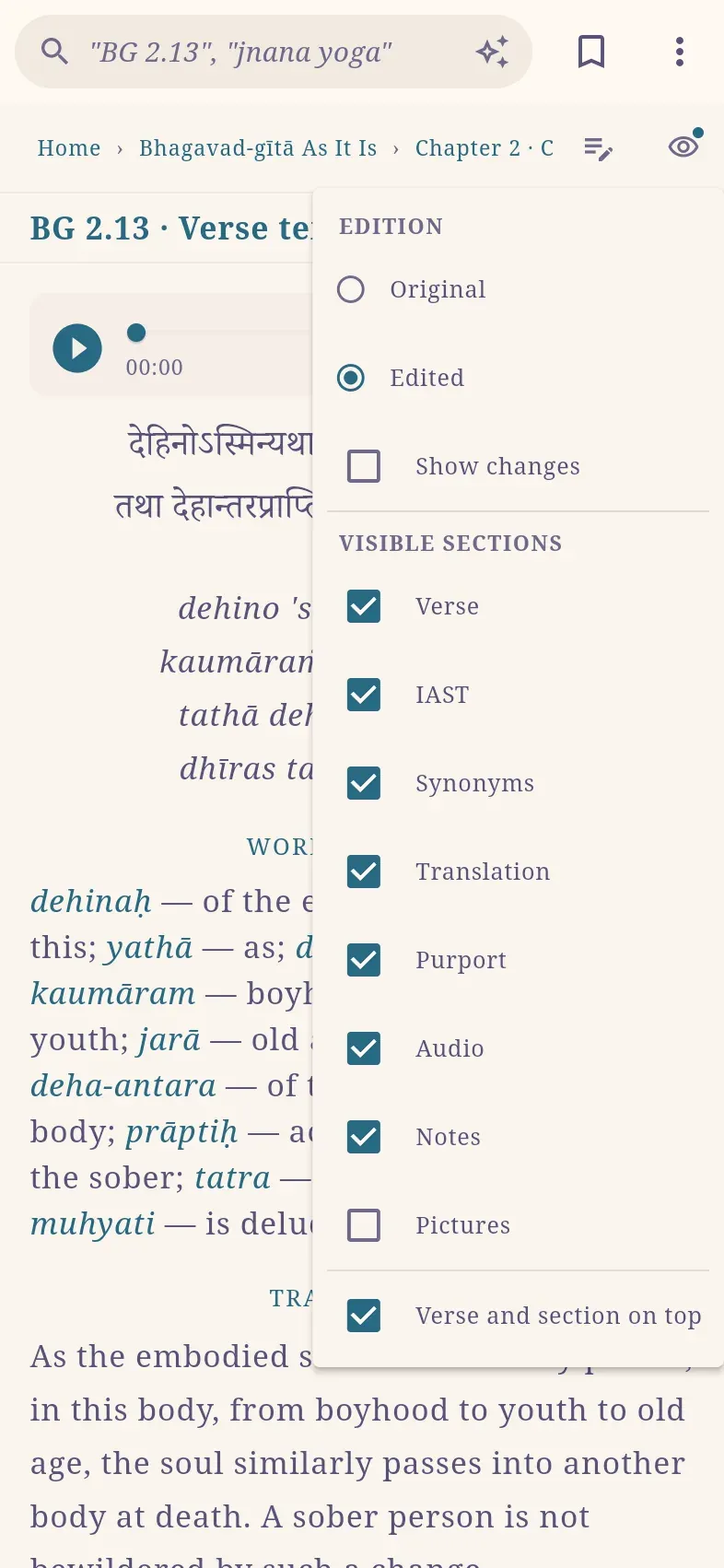
The verse page and the chapter page keep separate settings, so you can study single verses in full and read chapters straight through:
| Page | Shown by default |
|---|---|
| Verse page | All sections except Pictures. |
| Chapter page | Translation only. |
The choice stays as you move from chapter to chapter. A dot on the eye button indicates that the settings differ from the defaults. On prose pages, such as a chapter of Kṛṣṇa or a preface, only Notes and Pictures apply.
Change the text size and margins
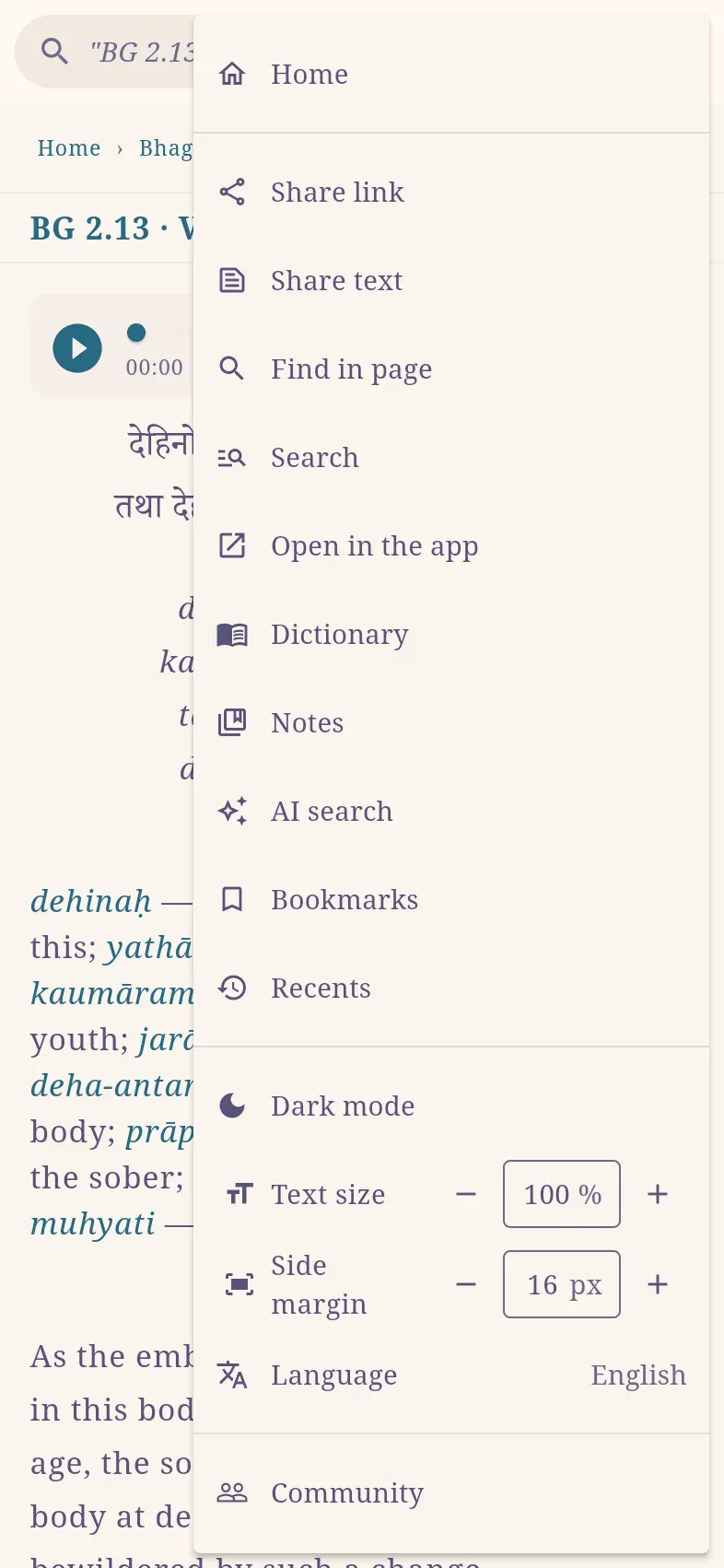
Section titled “Change the text size and margins”⋮ › Text size sets the reading size from 70% to 700%, in steps of 10%. ⋮ › Side margin sets the margin from 0 to 120 pixels; a wider margin keeps lines short in a wide window.
| Device | Larger | Smaller | Reset to 100% |
|---|---|---|---|
| Phone or tablet | Pinch out with two fingers | Pinch in | — |
| Mac | ⌘+ | ⌘− | ⌘0 |
| Windows, Linux | Ctrl++ | Ctrl+− | Ctrl+0 |
The text size applies to every reading page, including letters, talks, notes and the dictionary. The home page keeps a fixed size; the device’s own text size still applies there.
Use dark mode
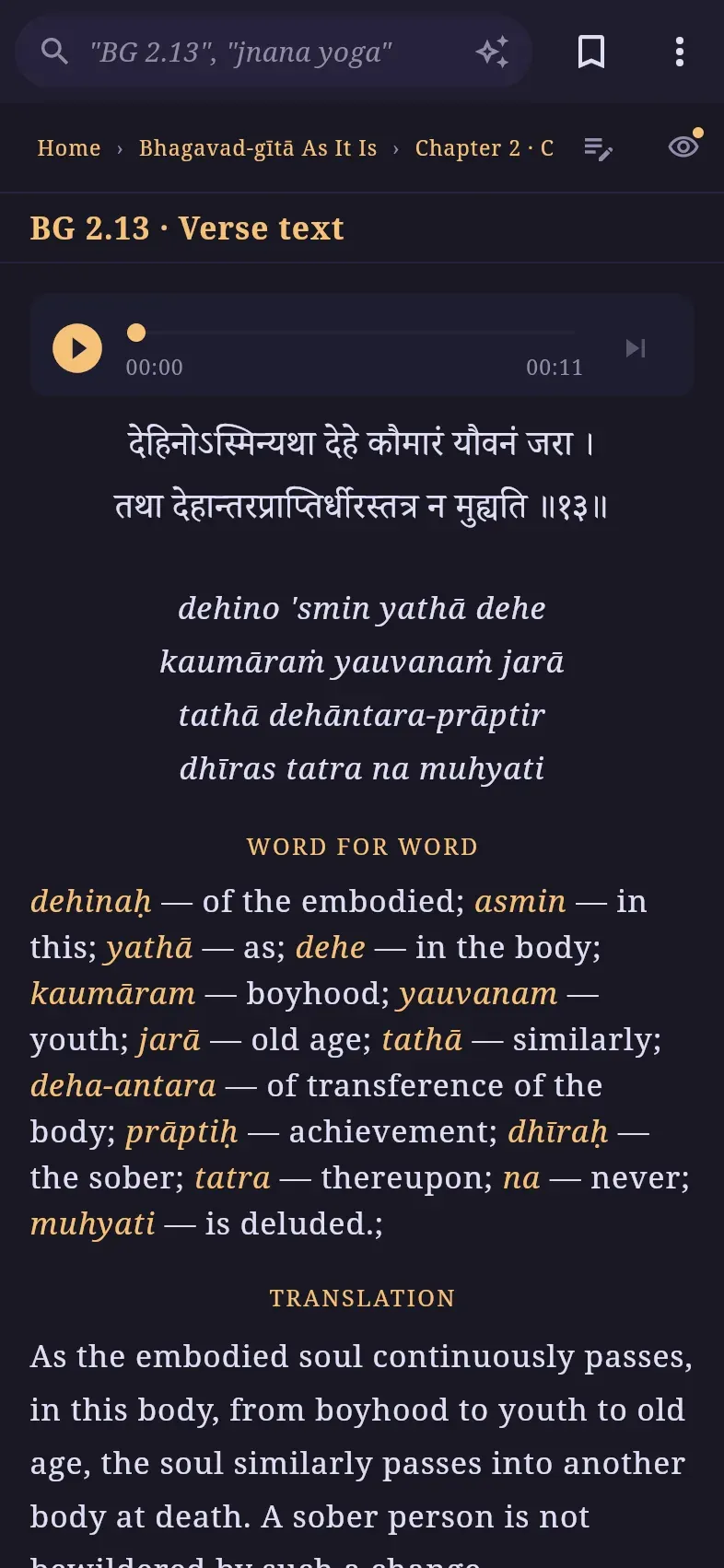
Section titled “Use dark mode”⋮ › Dark mode shows light text on a dark background, and ⋮ › Light mode switches back. Until you choose, Haribol follows the device’s setting.
Read two languages side by side
Section titled “Read two languages side by side”In a wide window, on a computer or a tablet in landscape, a second language can be shown beside the reading language, for comparing a translation with the English or studying in two languages.
- Open the view options.
- Select Second language, then select a language.
To return to one column, select Second language › Off.
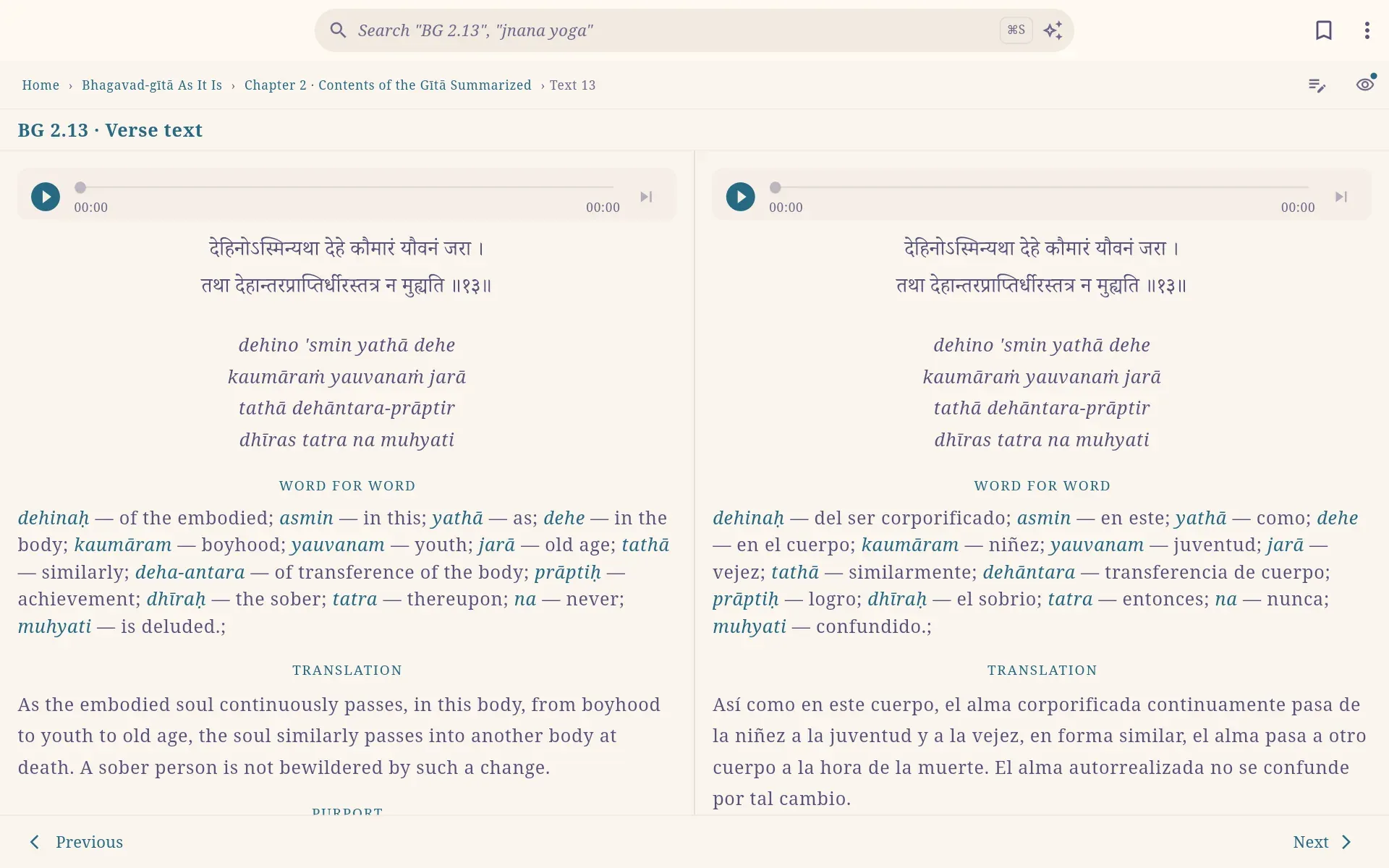
- On a chapter page, the two languages are paired verse by verse: each translation and purport starts level with its counterpart, and the Sanskrit is shown once.
- Only languages available for the book are offered. In a book without the second language, one column is shown; the second returns in a book that has it.
- Find in page searches the first column only.
The first column is the reading language, set in ⋮ › Language. See Languages.
Original or edited edition
Section titled “Original or edited edition”In English, Bhagavad-gītā, Śrīmad-Bhāgavatam and Caitanya-caritāmṛta are available in two editions. Choose one under EDITION in the view options.
| Edition | Text |
|---|---|
| Original | As first published during Śrīla Prabhupāda’s lifetime, checked against photographs of the first printed books. |
| Edited | The Bhaktivedanta Book Trust’s later revised edition. This is the default. |
The Sanskrit is the same in both; the word-for-word meanings, translation and purport can differ.
Show the changes
Section titled “Show the changes”Show changes marks the differences in the edition you are reading, on verse and chapter pages:
- In Original, text that the edited edition removed or replaced is struck through.
- In Edited, text that it added is highlighted.
Only the translation and purport are compared.
Compare the editions side by side
Section titled “Compare the editions side by side”In a wide window, EDITION offers a third option, Compare: the verse page shows the original edition on the left and the edited edition on the right, with the differences marked.
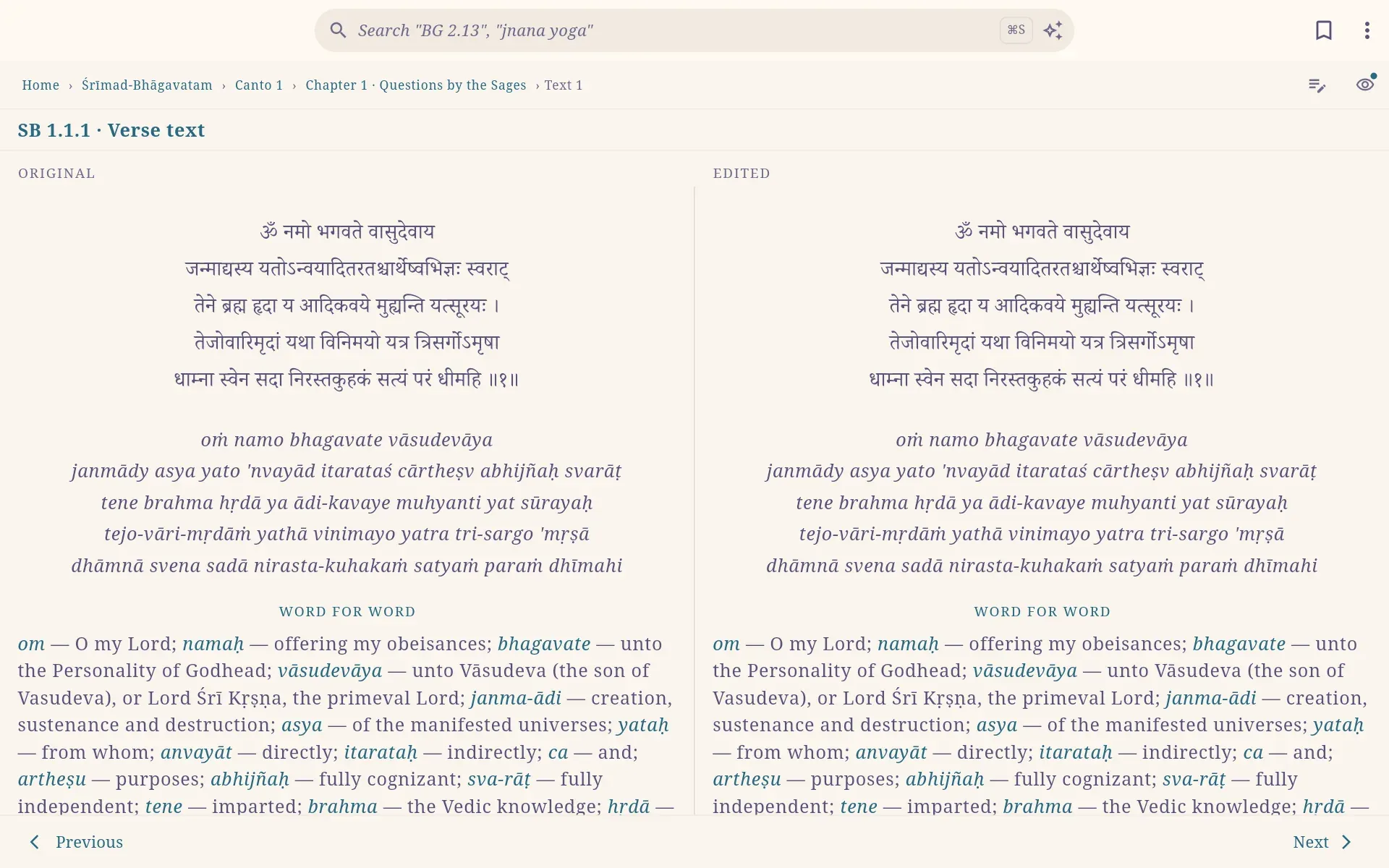
Compare applies to the verse page only. In a narrow window, and on chapter pages, the original edition is shown while Compare is selected.
Find something on the page
Section titled “Find something on the page”Find in page searches the verse or chapter you are reading.
- Select ⋮ › Find in page, or press ⌘F / Ctrl+F.
- Type a word. All matches are highlighted, with a counter such as 3/12.
- Press Enter or select the arrows to move between matches. Esc closes the bar.
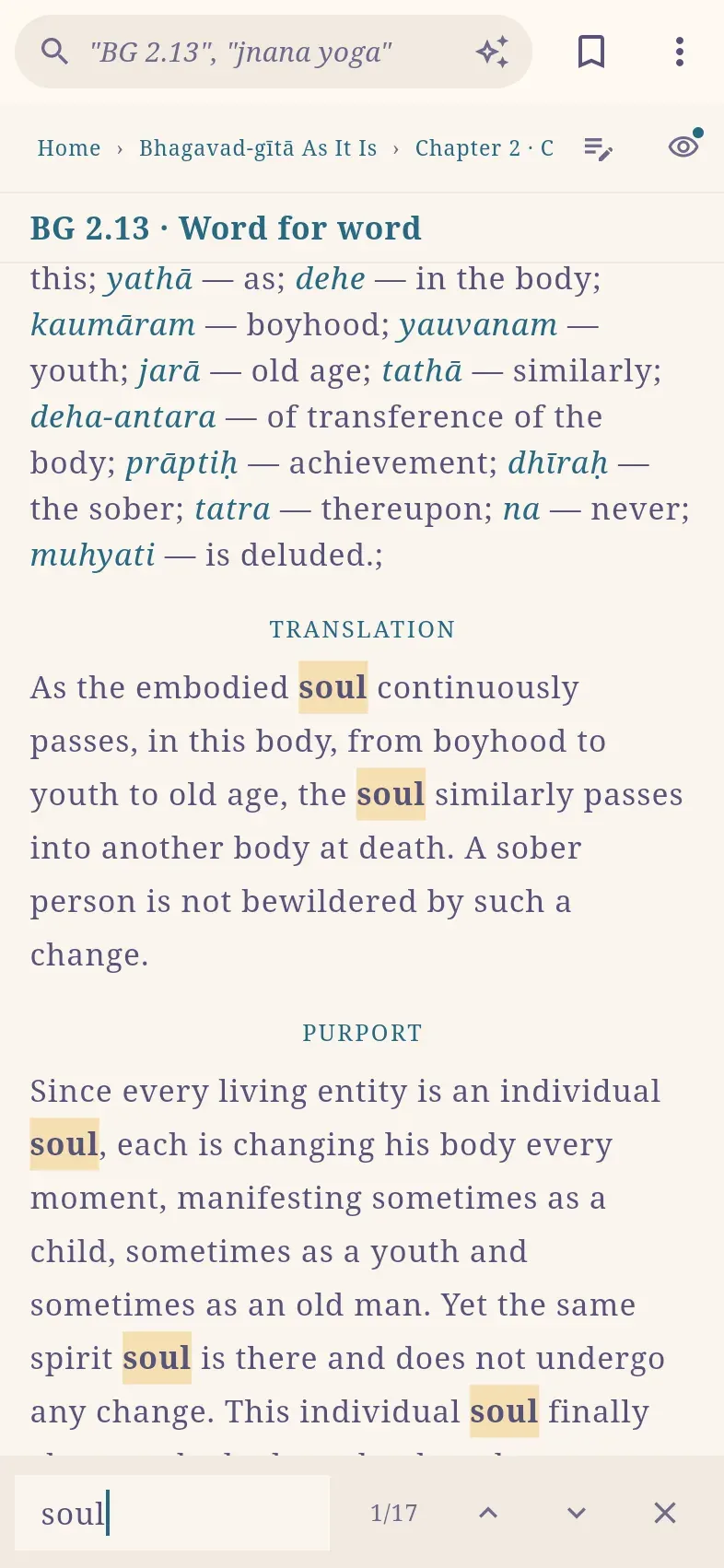
- Diacritics are optional: krsna finds Kṛṣṇa.
- Only visible sections are searched; hidden sections are not counted.
- On a chapter page, all verses of the chapter are searched, and a line at the left marks the current match.
To search the whole library, see Search.