
Copy and share
Passages can be copied with their source, and every page has a link that opens it as you see it.
Select text
Section titled “Select text”Text can be selected on verse pages, in the chapter view, in prose books, letters and talks. On a phone, long-press a word and drag the handles; on a computer, drag across the text and right-click the selection for the menu. Besides Copy and Select all, the menu offers:
| Menu item | Function |
|---|---|
| Copy with citation | Copies the passage with its source and link. |
| Note | Creates a note with the passage quoted. See Notes. |
| Search | Searches the library for the selected words. See Search. |
| Share | Android app only: sends the selected text through the share sheet. |
Copy with citation
Section titled “Copy with citation”Copy with citation copies the passage in quotation marks, followed by the book, the verse and the page’s link:
"As the embodied soul continuously passes, in this body, from boyhoodto youth to old age, the soul similarly passes into another body at death."
— Bhagavad-gītā As It Is, BG 2.13https://haribol.app/bg/2/13- A selection across several verses in the chapter view cites the range (BG 2.1–2.3) and links to the chapter.
- A passage from a letter or talk cites its title and date, for example Letters of Śrīla Prabhupāda: Letter to Mahatma Gandhi, July 12, 1947.
- The book title is in the reading language, and the link opens in that language.
On a verse page, ⌘⇧C / Ctrl+Shift+C does the same; with nothing selected, it copies the verse’s translation with its citation.
Share a page’s link
Section titled “Share a page’s link”Every page has its own address: ⋮ › Share link on a phone opens the share sheet, Copy link on a computer copies it.
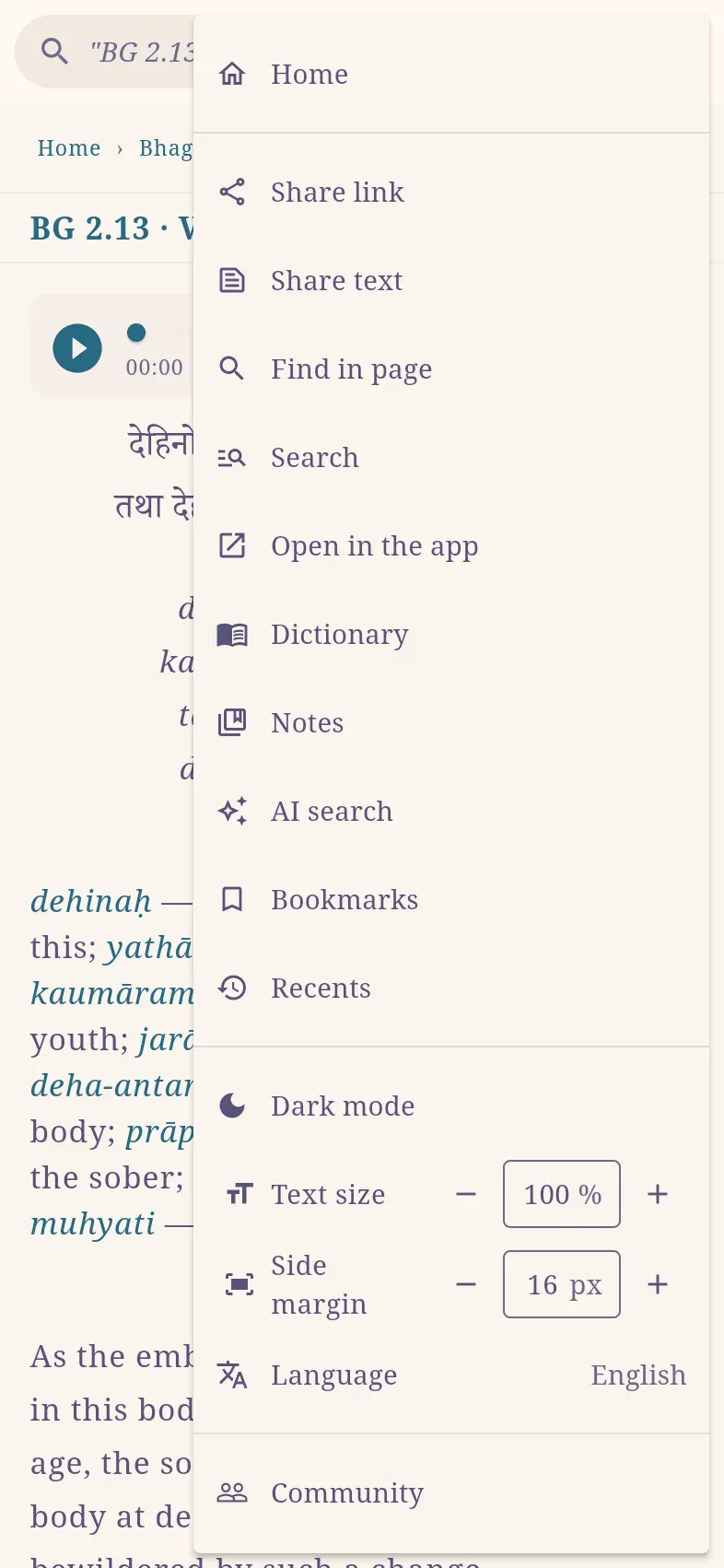
The link reproduces the page as you see it: the verse you have swiped to, a search with its filters, and the reading language (for German, haribol.app/de/bg/2/13). It opens in any browser, or in the Haribol app where it is installed.
Personal pages (Bookmarks, history, Notes, the note editor and account pages) have no link to share, because it would show the recipient their own data. To share a note, see Share a note publicly.
Share a verse’s or chapter’s text
Section titled “Share a verse’s or chapter’s text”On verse and chapter pages, ⋮ › Share text sends the text itself, followed by the page’s link.
| Page | Content |
|---|---|
| Verse | The verse number and the sections currently shown in the view options: Sanskrit, word for word, translation, purport. Hide the purport to send only the translation. |
| Chapter | The book and chapter title, then every verse with the sections shown in the chapter view. Very long chapters are cut off after about 8,000 characters. |
Open pages in new tabs (web app)
Section titled “Open pages in new tabs (web app)”- ⌘-click / Ctrl-click on anything that opens a page, such as a book, chapter, verse or search result, opens it in a new tab.
- Right-click on a computer, or long-press on a phone, on a link offers Open in new tab and Copy link. This works on books, chapter and canto lists, search results, index entries, letters and talks, Continue reading, and references in notes.
- In the reading text, right-click opens the selection menu instead, and long-press selects text.
- Shift + right-click opens the browser’s own menu, for example to translate the page. The browser’s Copy does not include text selected in the app; use the app’s Copy.