
Notes
Notes keep your study alongside the text. A note can belong to a verse, a chapter or a book, or stand on its own, and it can refer to any number of other verses. All your notes are at haribol.app/notes (⋮ › Notes).
Write a note
Section titled “Write a note”| Start from | The note belongs to |
|---|---|
| The note button above a page, then New note | That verse, chapter or book. The note starts with its reference, for example @bg2.13. |
| A passage: select it, then Note | The verse. The passage is quoted at the top and marked in the verse text with a footnote number that opens the note. |
| Add note below a verse’s purport | The verse. |
| New note on the Notes page | No page: a standalone note. |
On a computer, ⌘N / Ctrl+N opens and closes the notes of the current page, and ⌘⇧N / Ctrl+Shift+N opens all notes.
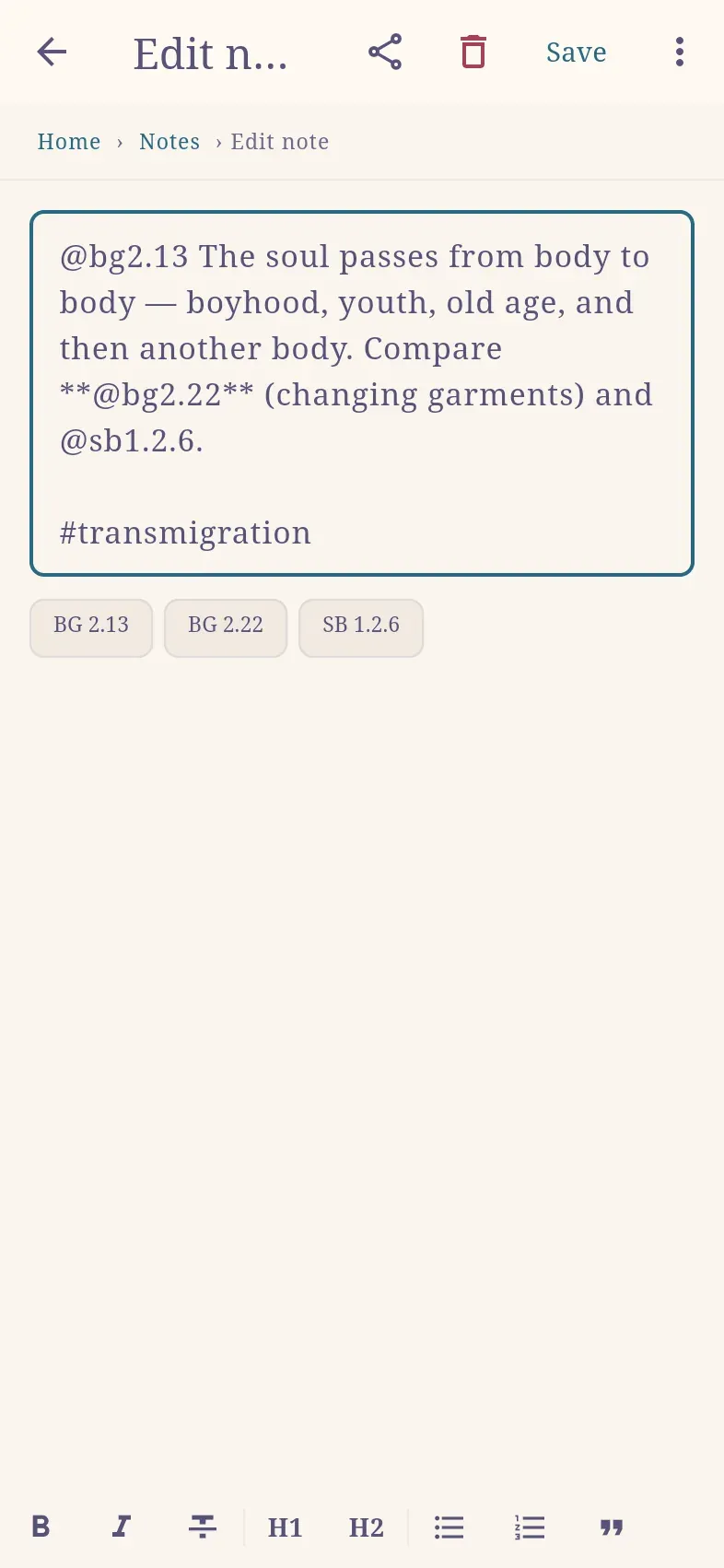
Refer to other verses
Section titled “Refer to other verses”Type @, the book’s abbreviation and the number, without spaces:
| Reference | Meaning |
|---|---|
@bg2.13 |
Bhagavad-gītā 2.13 |
@sb1.2.6 |
Śrīmad-Bhāgavatam 1.2.6 |
@ccadi7.3 |
Caitanya-caritāmṛta, Ādi-līlā 7.3 (also @ccmadhya…, @ccantya…) |
@bg2 |
Bhagavad-gītā, Chapter 2 |
While the cursor is inside a reference, a line below the text previews the verse; selecting it saves the note and opens the verse. Each reference appears below the note as a chip that opens the verse.
A note appears on every verse it refers to: a note on BG 2.13 that mentions @bg2.22 is shown at BG 2.22 as well.
A pasted Haribol link becomes a reference: https://haribol.app/bg/2/13 becomes @bg2.13. Links to letters, talks and other pages stay links.
Type # and a word anywhere in a note, for example #transmigration or #lecture-prep. Tags appear as chips below the note. Selecting a tag chip, or searching for the tag on the Notes page, lists every note that carries it.
Formatting
Section titled “Formatting”Notes use Markdown: **bold**, *italic*, # Heading, - item, > quote. The formatting bar above the keyboard applies the same formatting to the selected words or the current line, including strikethrough, a second heading level and numbered lists.
Sanskrit words
Section titled “Sanskrit words”Diacritics do not need to be typed. After the first two letters of a word, the editor suggests Sanskrit words: type krsna and select kṛṣṇa to insert it with diacritics.
In a displayed note, Sanskrit words found in the dictionary are links. Words with diacritics are always linked, as are terms such as karma, yoga and dharma; ordinary English words are not.
A page’s notes
Section titled “A page’s notes”A dot on the note button above a page shows that the page has notes. The button opens them over the page, as a sheet on a phone or a panel on the right in a wide window, without losing the reading position. The list contains:
- your notes that refer to the page;
- public notes from people you follow;
- on a chapter, the notes on its verses, each under its verse and each note only once.
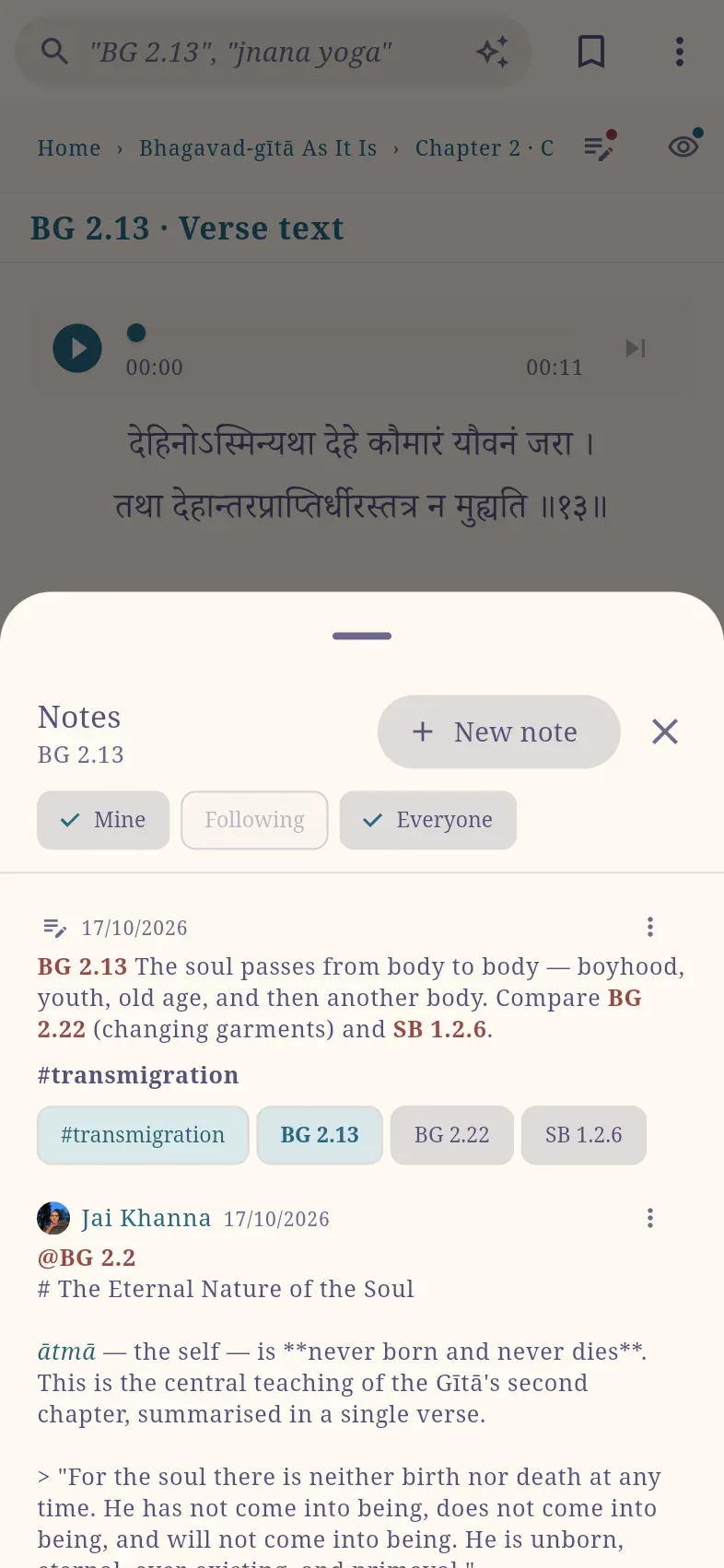
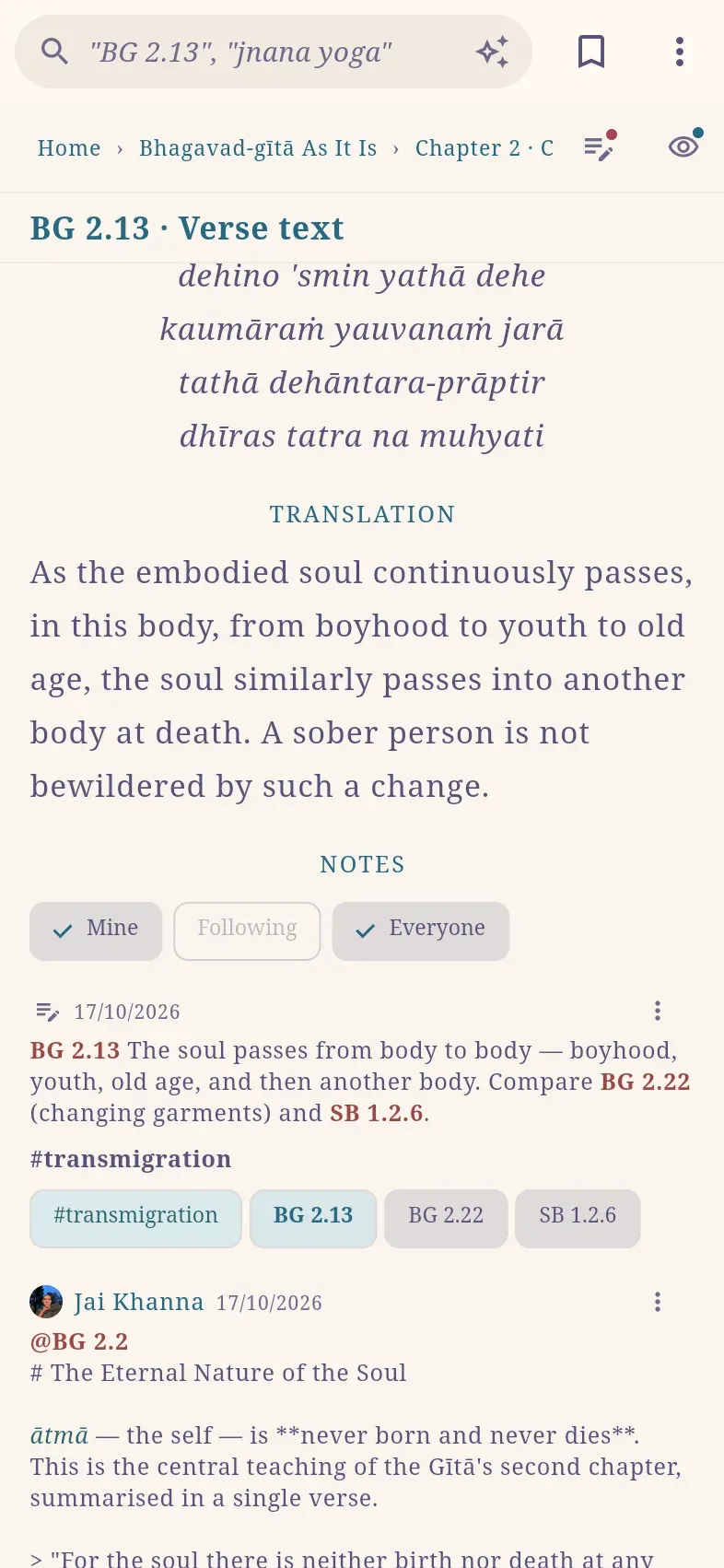
On a verse page, the notes also follow the purport. Notes on a whole chapter are listed at the end of the chapter under Chapter notes, and notes on a book at the end of the book’s page. To hide notes and footnote numbers, turn off Notes in the view options; in the chapter view they are off by default.
A deleted note can be restored with Undo in the message that appears for a few seconds afterwards.
Find notes
Section titled “Find notes”The Notes page (haribol.app/notes) lists all your notes.
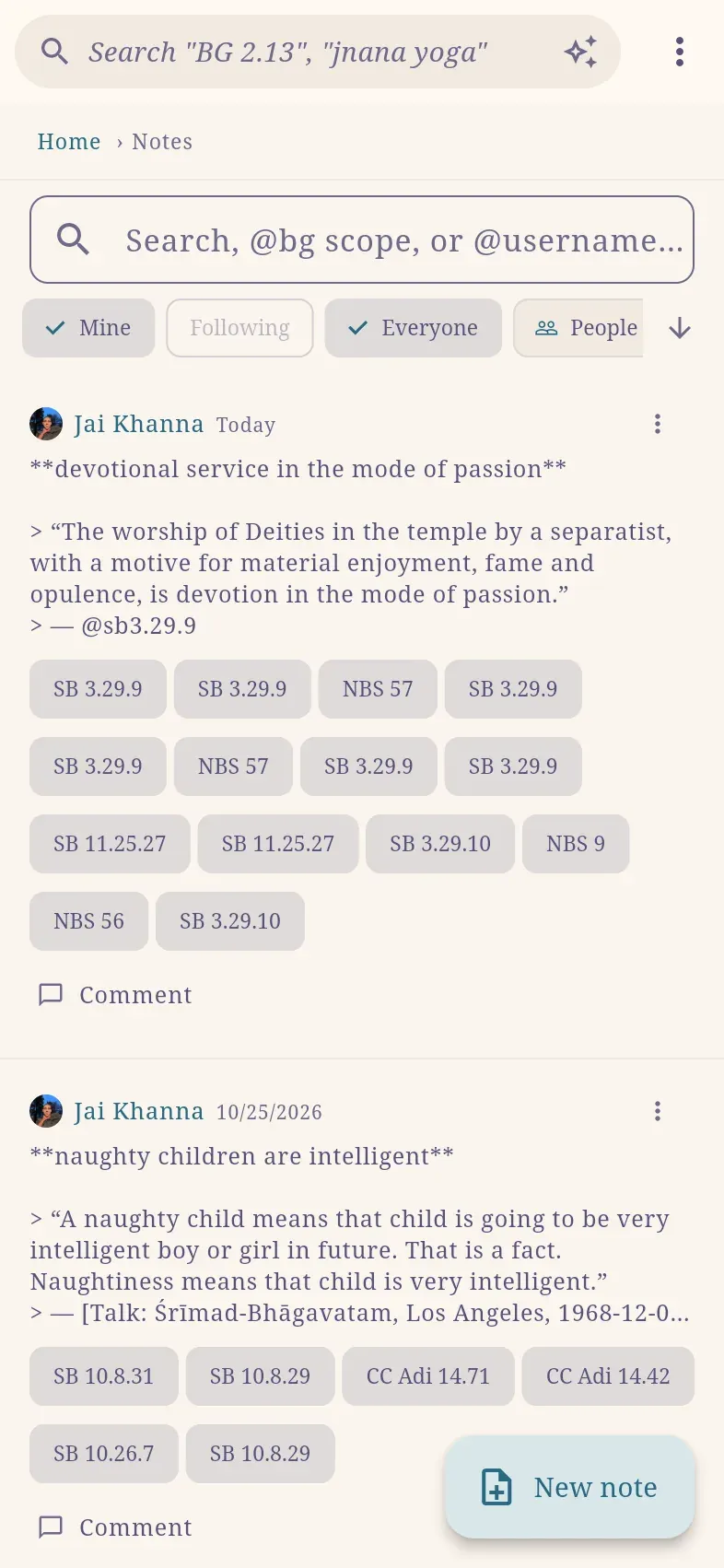
| To find | Do this |
|---|---|
| Words | Enter them in the search box, with or without diacritics: atma finds ātmā. |
| Notes on one book | Type @ and the book’s abbreviation, followed by a space, for example @bg. Suggestions (@sb, @ccadi, @nod …) appear as you type. |
| A tag | Enter it with its #, for example #lecture-prep. |
| A time period | Date |
| Public notes from people you follow | Turn on Community (signed in). People, or @ and a username in the search box, chooses whose notes are shown. |
To select several notes, long-press one; All selects every note in the list.
Share a note publicly
Section titled “Share a note publicly”Notes are private unless you make them public. Public notes require an account.
To make a note public, turn on Share publicly in the editor, or select Share publicly in the note’s ⋮ menu on the Notes page. The app then offers Copy link.
A public note’s link (haribol.app/note/…) opens for anyone, signed in or not, in the app or a browser. People who follow you see the note on the pages it belongs to, under Community on their Notes page and on the Community page.
Make private withdraws the note; its link then reports that the note is not shared.
The Community page
Section titled “The Community page”Community (in the ⋮ menu, or on the home page’s Tools tab) shows what readers are writing: public notes and comments on them, newest first. Following shows the people you follow; Everyone shows all readers. No account is needed for Everyone.
Select a note to open it with its comments. A comment shows the note it belongs to; select it to open that note with its comments. Find people searches for readers to follow.
Once a week, the bell on the home page shows a short summary of what was written in the community, such as “14 notes · 31 comments · from 8 readers”. Select it to open the Community page. You can turn it off with ⚙ in the notifications.
Now and then a short card asks you to support Haribol, which is free and has no ads. It appears at most once a day on the Community page and once a week at the end of a chapter or verse page. Not now hides it for a month.
Send a note
Section titled “Send a note”The share button on a note sends its text in one of two formats:
| Format | Content |
|---|---|
| Share as Markdown | Formatting and clickable links, for apps such as Notion or Obsidian. Example: [BG 2.13](https://haribol.app/bg/2/13) |
| Share as Plain Text | Formatting removed, for messages and email. Example: BG 2.13 (https://haribol.app/bg/2/13) |
In both formats, each reference becomes a link to the web app.
Offline use and sync
Section titled “Offline use and sync”Notes are saved on the device as you write; no connection is required. When you are signed in, notes are also stored in your account and appear on your other devices. Changes made offline are sent when the connection returns. If a note was changed on two devices, the more recent change is kept.